Merging joins several PDFs into a single file, for example an application letter, a CV and three certificates. Here the joining happens inside your browser, so the separate files and the combined one stay on your computer.
How to merge with PDF Keel
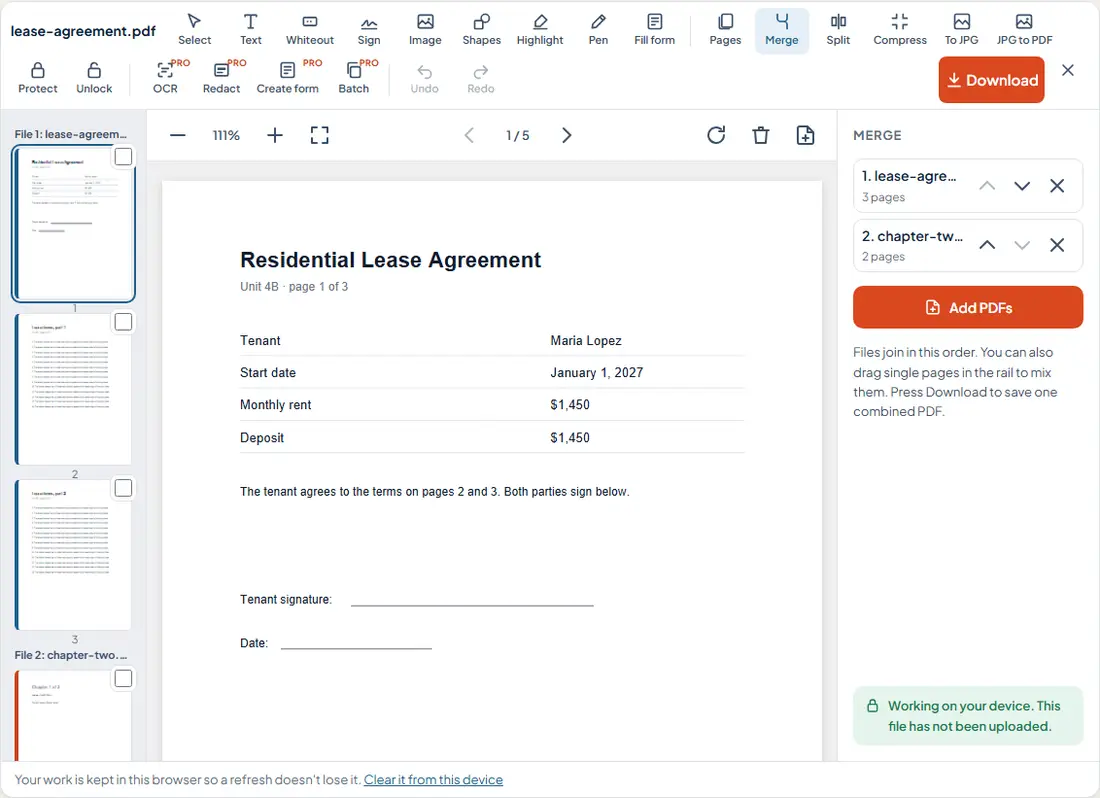
- Drop all the PDFs at once, or open one and press Add PDFs for the rest.
- The side rail labels where each file starts: File 1, File 2 and so on.
- Use the arrows in the Merge panel to move a whole file earlier or later.
- To mix single pages, drag a thumbnail in the rail to its new spot.
- Remove a file you added by mistake with its X button.
- Press Download to save one combined PDF.
What it can't do
Bookmarks and links that jump between pages are not carried into the merged file. If two forms use the same field name, they will share one answer. Password-protected PDFs need their password before they can be added.
Tip
You can drop JPG or PNG photos into the same merge. Each image becomes a page, which is handy for adding a scanned receipt to a report.
Questions
Is there a limit on how many files I can merge?
There is no count limit. Each file can be up to 200 MB on the free plan, and very large totals depend on your device memory.
What will the merged file be called?
It takes the name of the first file with -edited added. You can rename it after download.
Can I delete a few pages before merging?
Yes. Tick them in the rail, open Pages and press Delete.