Blank scanner pages, an old cover sheet, or a page with details you should not share: deleting pages gives you a shorter PDF. The new file is rebuilt from the pages you keep, so the removed ones are not hiding inside it.
How to delete pages with PDF Keel
- Open the PDF.
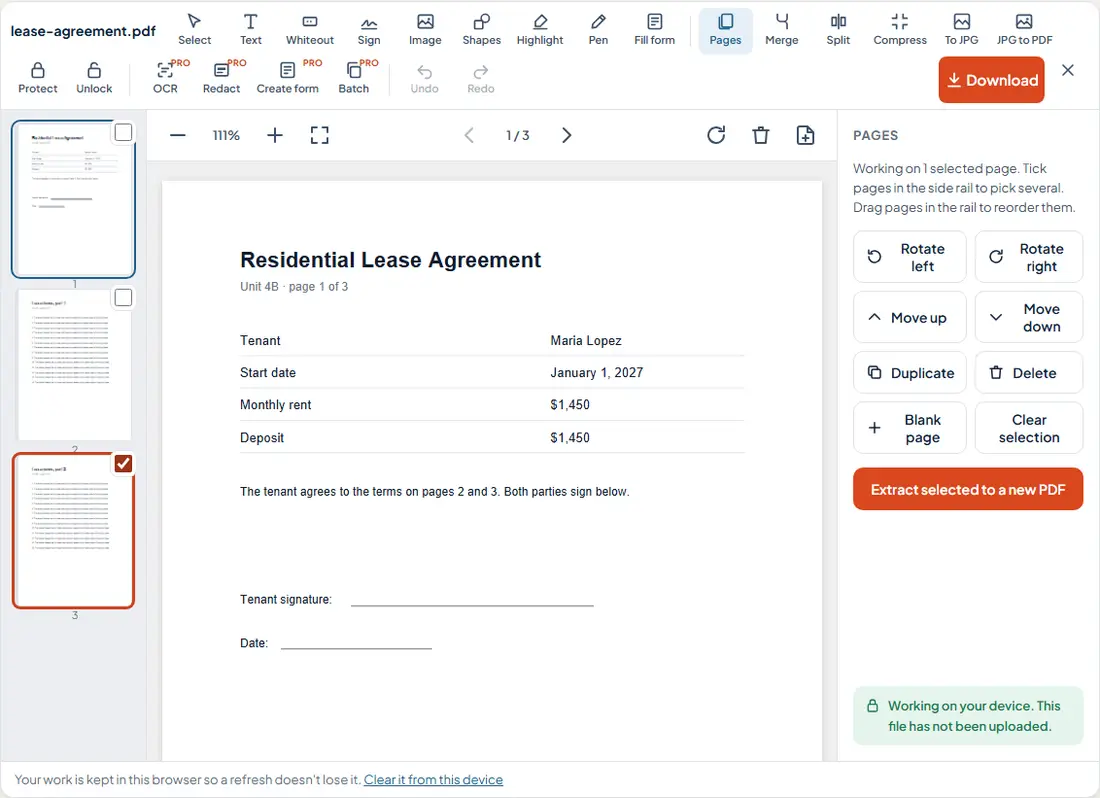
- Tick the small box on each page you want gone. A ticked page gets an orange ring.
- Press Delete in the Pages panel, or the bin icon above the page.
- Made a mistake? Press Undo and the pages come back.
- Press Download to save the shorter file.
What it can't do
At least one page has to stay. Deleting pages does not remove text from the pages you keep, and it does not change bookmarks, which are dropped when the page list changes.
Tip
If you want to keep only two pages out of fifty, it is quicker to tick those two and press Extract selected to a new PDF. You get a new file with just those pages and the original stays whole.
Questions
Are deleted pages really gone from the file?
Yes. When pages are removed, the download is built only from the pages that remain. We test this on every release.
Can I delete pages on a phone?
Yes. Tap the boxes on the thumbnails at the top, then tap Delete in the panel below.
Does it change the original PDF?
No. Your original file is never written to. You download a new copy.