Photos of receipts, a scanned ID, or pages of handwritten notes are easier to send as one PDF. Drop the images here and each one becomes a page, built in your browser without uploading the photos.
How to jpg to with PDF Keel
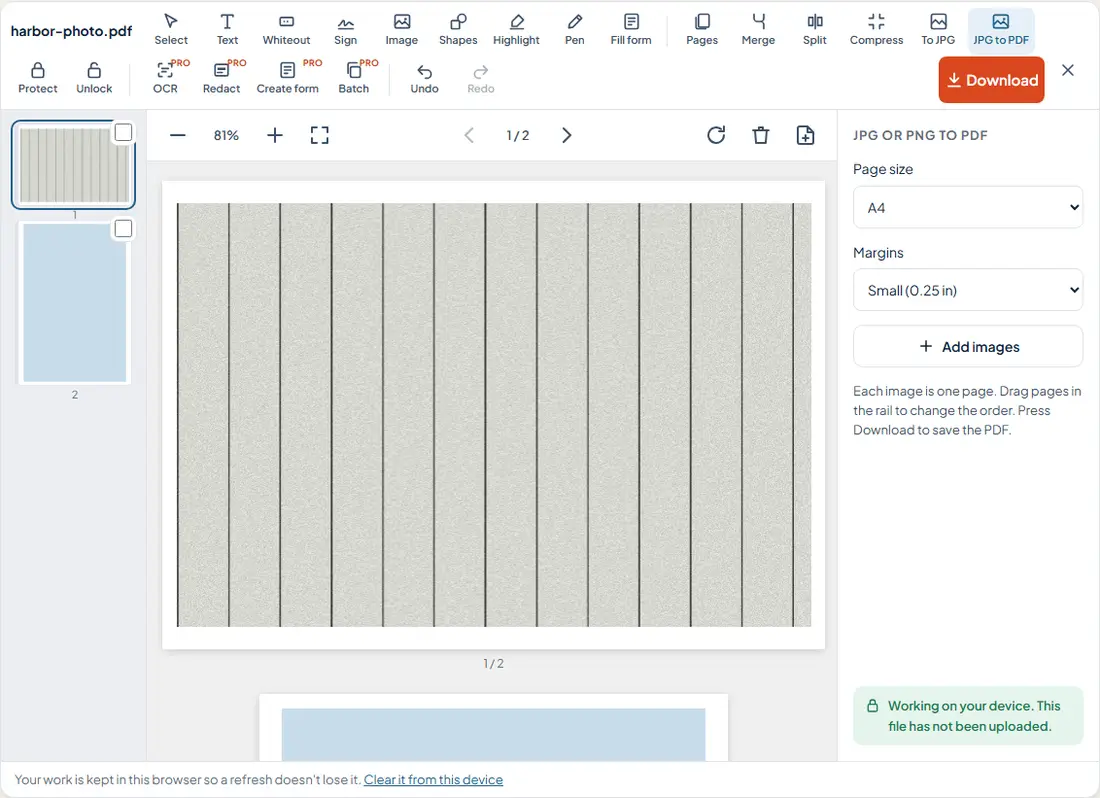
- Drop JPG or PNG files on the box above. WebP, GIF and BMP work too.
- Each image becomes one page, in the order you picked them.
- Choose a page size: Fit each image, A4 or US Letter.
- Choose margins: None, Small or Big. The pages update right away.
- Drag thumbnails to change the order, or press Add images for more.
- Download the PDF.
What it can't do
Images are placed as they are. There is no automatic cropping, straightening or text recognition. Photos taken sideways stay sideways until you rotate their page. HEIC photos from iPhones only open in browsers that can read HEIC.
Tip
Phone photos are often 4 to 8 MB each. After making the PDF, open Compress and choose Medium. A ten-photo PDF often drops to a size that fits in an email.
Questions
Which page size should I pick?
A4 or Letter if someone may print it. Fit each image if it will only be read on screen.
What is the PDF called?
It takes the name of the first image, ending in .pdf.
Are my photos uploaded?
No. They are read and placed into the PDF by your own browser.