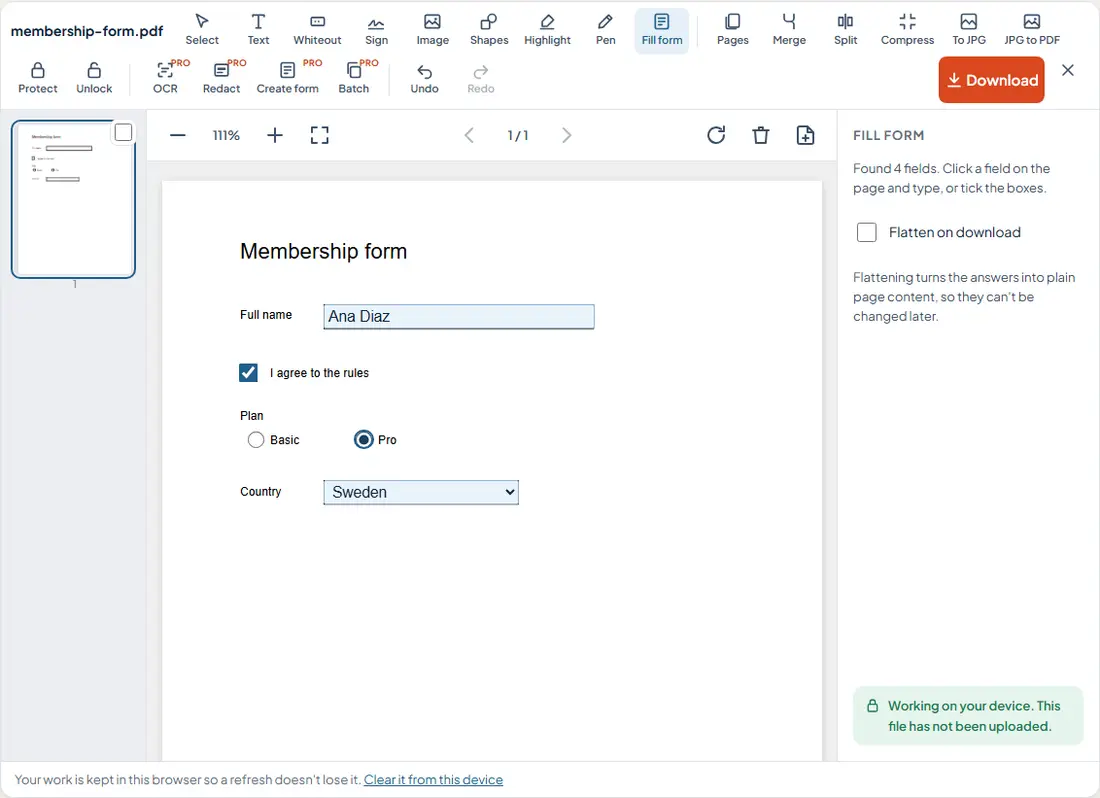
Many PDF forms have real fields built in: boxes to type in, tick boxes, round option buttons and dropdown lists. PDF Keel finds those fields and lets you fill them in your browser, so a tax form or membership form never goes to a server.
How to fill pdf form with PDF Keel
- Open the form. The Fill form panel tells you how many fields it found.
- Click a light blue box and type. Press Tab to jump to the next one.
- Tick checkboxes and pick one option in each group of round buttons.
- Open dropdowns and choose an answer.
- Turn on Flatten on download if the answers should not be changeable later.
- Press Download.
What it can't do
Scanned forms and forms made from a plain image have no fields. The panel will say so, and you can type on them with the Text tool instead. Forms that run JavaScript calculations, such as totals that add themselves up, are filled but the scripts do not run. Older XFA forms, a dynamic format some government forms still use, are not supported.
Tip
Leave Flatten off if someone else still needs to fill their part of the form. Turn it on for the final copy you submit, so nobody can change your answers by accident.
Questions
Will my answers show up in other PDF readers?
Yes. The values are saved into the form fields, and each field gets a fresh appearance so any reader can display it.
Can I fill a form on my phone?
Yes. Tap a field to type. The Download button stays at the bottom of the screen.
What does flatten do?
It turns the fields into normal page content. The answers stay visible but can no longer be edited.