PDF Keel edits a PDF by adding things on top of the page: new text, white boxes that cover old text, pictures, shapes, highlights and pen marks. The file opens in your browser tab and is saved back to your device.
How to edit with PDF Keel
- Drop your PDF on the box above, or press Choose PDF.
- Pick Text in the toolbar and click where the new words should go. Clicking on existing text copies its font and size.
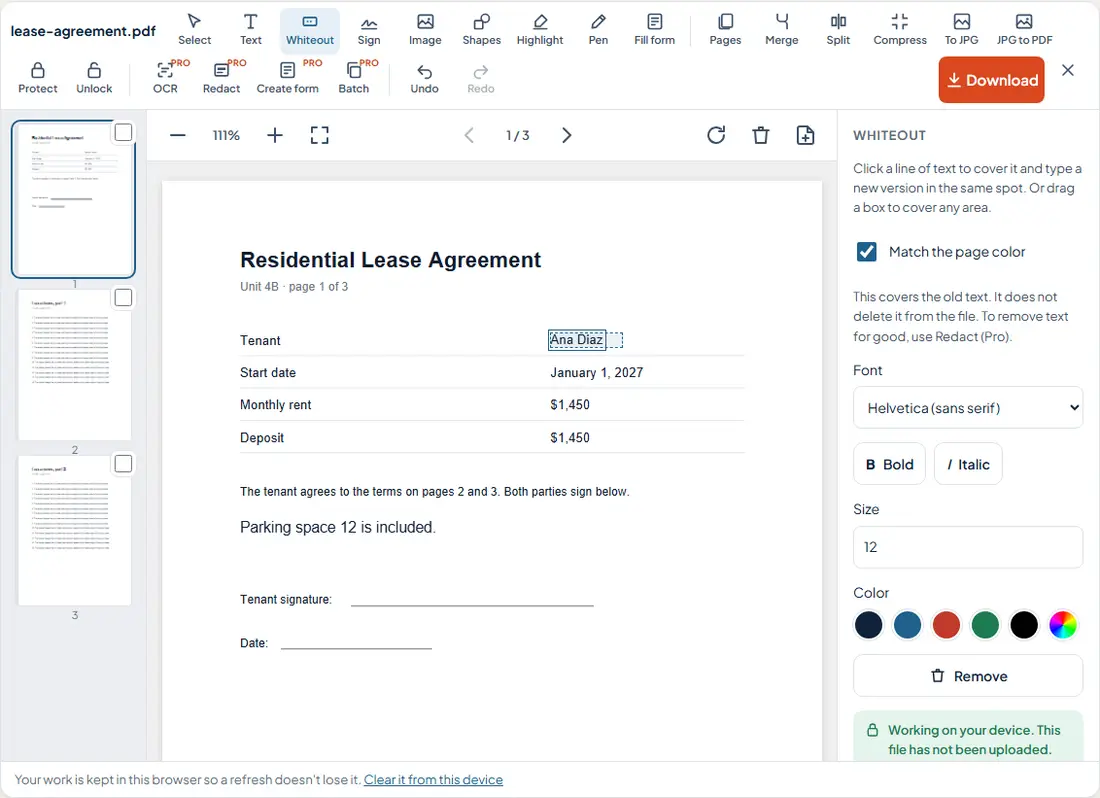
- To change a word that is already printed, pick Whiteout and click that line. It gets covered, and a copy appears ready to retype.
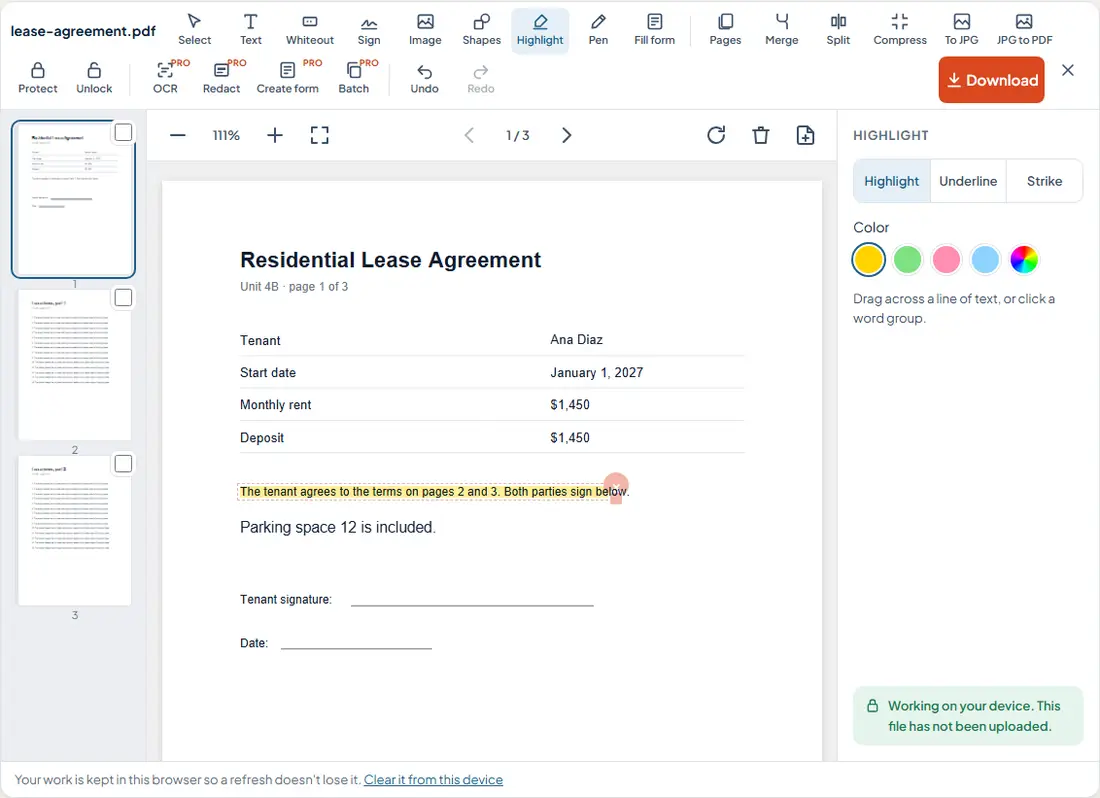
- Use Image, Shapes, Highlight or Pen for everything else. Select moves and resizes anything you added.
- Press Download. You get a new file named after the original with -edited at the end.
What it can't do
It does not reflow paragraphs like a word processor. Whiteout hides old text visually, but the original words are still inside the file and can be copied out. Text you add uses Helvetica, Times or Courier, so a fancy brand font is matched to the closest of these. Greek, Cyrillic and Vietnamese text uses Noto Sans. Chinese, Arabic and emoji are not supported yet.
Tip
Before you retype a line, zoom in with the plus button. The cover box and new text line up more precisely when the page is large on screen.
Questions
Can I undo a change?
Yes. Press Undo in the toolbar or Ctrl+Z. Redo is Ctrl+Y.
Does the edited file have a watermark?
No. The download is your document plus your changes, nothing else.
Will the person I send it to see the covered text?
Not on the page. Someone who copies all text out of the file could still find it. For private details, wait for Redact in Pro.