Sometimes you just need to type a date on a line, write your name in a box that is not a real form field, or add a short note at the top. The Text tool puts typed words anywhere on any page.
How to add text to with PDF Keel
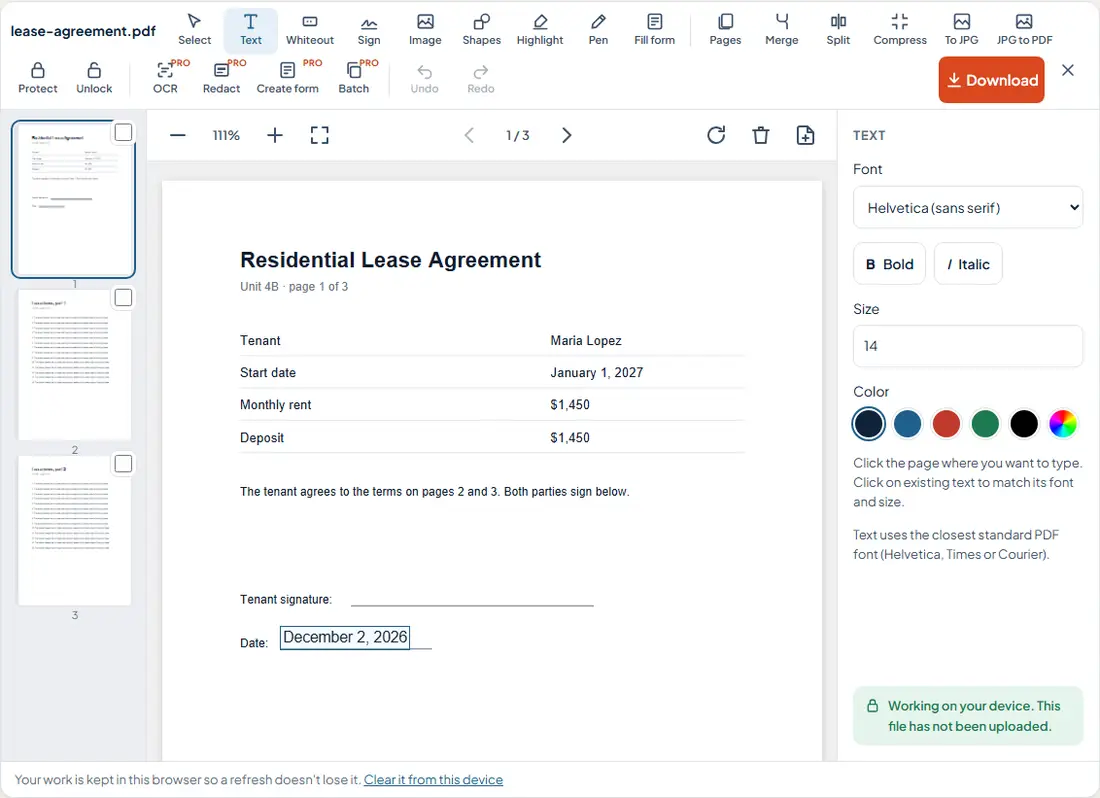
- Open the PDF. The Text tool is already chosen.
- Click the spot where the words should start. A blinking cursor appears.
- Type. Press Enter for a new line.
- Click anywhere else to finish. Click the text again later to change it.
- Change font, bold, italic, size or color in the panel on the right.
- Drag the text with the Select tool if it needs to move, then download.
What it can't do
Typed text sits on top of the page. It does not push the original lines aside. It uses Helvetica, Times or Courier, or Noto Sans for Greek, Cyrillic, Vietnamese and other Latin letters. Chinese, Arabic and emoji come out as question marks for now.
Tip
Click right on an existing word before typing and the new text takes on that word size and font family. It is the fastest way to make an added date match the rest of the form.
Questions
Can I add text to a scanned page?
Yes. A scan is a picture, but you can type on top of it like any other page.
How do I delete text I added?
Select it and press Delete, or use the round X button on its corner.
Can I change the color?
Yes. Pick a swatch or the rainbow circle for any color.